
| 일 | 월 | 화 | 수 | 목 | 금 | 토 |
|---|---|---|---|---|---|---|
| 1 | 2 | 3 | 4 | 5 | 6 | |
| 7 | 8 | 9 | 10 | 11 | 12 | 13 |
| 14 | 15 | 16 | 17 | 18 | 19 | 20 |
| 21 | 22 | 23 | 24 | 25 | 26 | 27 |
| 28 | 29 | 30 |
- Python
- 객체지향
- ASR
- 힙정렬
- 랭그래프
- SQL
- TTS
- RNN
- LangGraph
- python기초
- 데이터엔지니어
- 생성형 인공지능
- RDBMS
- 머신러닝
- python 기초
- CLIP
- dementional reduction
- Transformer
- 트랜스포머
- 알고리즘
- 데이터 시각화
- 정보처리기사
- 에이전트
- 자연어처리
- 딥러닝
- UMAP
- CNN
- 소프트웨어 개발
- 캐글
- 기초
- Today
- Total
수달이네 기술 블로그
1. 멀티클라우드(도커) 본문
docker의 명령어
bash shell 이 실행되기 위해선
docker container run --help: 도커 컨테이너의 명령어 확인가능
**-i, interactive: **표준 입력(STDIN)을 열어 대화형 모드를 활성화합니다.
**-t, tty: *가상 터미널(pseudo-TTY)을 할당하여 터미널 환경을 제공합니다.
-d: detach : 백그라운드에서 실행
위의 세 옵션을 잘 알아두어야한다!
docker container run --name testos centos:8 /bin/bash: 도커의
docker container ls -a : 도커의 현재 상태 확인
- -a 옵션으로 모든 컨테이너를 선택함
docker container run -t --name testos centos:8
- testos centos:8 (기본 /bin/bash)를 tty옵션으로 실행
docker container run -i --name 이름 centos:8
docker container rm -f testos: testos라는 이름의 컨테이너 삭제
docker container run --rm --name testos centos:8 /bin/cal
- 1회성으로 컨테이너 활성화(한번 연산)후 삭제
- rm -f 하는것과 같음
- 1회성 연산이 필요할때 사용함.
- /bin/cal은 달력 출력
docker container run --rm centos:8 /bin/ping localhost
PING localhost(localhost (::1)) 56 data bytes
64 bytes from localhost (::1): icmp_seq=1 ttl=64 time=0.046 ms
64 bytes from localhost (::1): icmp_seq=2 ttl=64 time=0.067 ms
64 bytes from localhost (::1): icmp_seq=3 ttl=64 time=0.032 ms
64 bytes from localhost (::1): icmp_seq=4 ttl=64 time=0.037 ms
64 bytes from localhost (::1): icmp_seq=5 ttl=64 time=0.037 ms
64 bytes from localhost (::1): icmp_seq=6 ttl=64 time=0.042 ms
- 위처럼 핑테스트를 할 수 있음
- 그러나 이게 돌아가는 동안 ㅏ콘솔 사용 불가(foreground동작중)
- 백그라운드드로 실행시킬 수 있음(-d옵션
docker container run --name test5 nginx
삭제
docker container rm -f 컨테이너명: 컨테이너명으로 삭제
docker container rm -f 컨테이너 id: 컨테이너 id로 삭제
docker container ls -aq : 컨테이너 아이디 전부 출력
docker container rm -f $(docker container ls -aq)
- date: 현재 날짜 출력
- echo $(명령어): 명령어를 명령어로 출력
- 컨테이너 id전부 삭제
alias crm='docker container rm -f $(docker container ls -aq)'
- crm이라는 명령어를 만들어서 간단하게 삭제할 수 있도록 만듦
alias irm='docker image겨ㅜ rm -f $(docker image ls -aq)'
:wq로 저장
이후 source /root/.bashrc 로 적용
실행
docker container start testweb: 컨테이너 세션을 시작
[root@docker1 ~]# docker container ls -a
CONTAINER ID   IMAGE     COMMAND                   CREATED              STATUS         PORTS     NAMES
aa52fc527f20   nginx     "/docker-entrypoint.…"   About a minute ago   Up 3 seconds   80/tcp    testweb
시작시 위와같이 status 가 뜸
docker container kill -s 9 testweb: 컨테이너 세션을 종료
[root@docker1 ~]# docker container ls -a
CONTAINER ID   IMAGE     COMMAND                   CREATED              STATUS                      PORTS     NAMES
aa52fc527f20   nginx     "/docker-entrypoint.…"   About a minute ago   Exited (137) 1 second ago             testweb
위와같이 exited라 뜸
- test1 컨테이너
- centos:8 이미지 사용
- 컨테이너 구동시 'cat /etc/os-release' 명령이 실행되고 컨테이너는 바로 삭제되도록 한다.
[root@docker1 ~]# docker container run --rm --name test1 centos:8 cat /etc/os-release
- test2 컨테이너
- centos:8 이미지 사용
- test2 컨테이너의 bash 쉘이 실행된 터미널 환경에서 'cat /etc/os-release' 명령을 실시한다.
- 컨테이너에서 'exit' 명령을 실행하여 bash 쉘을 종료하면 컨테이너가 바로 삭제되도록 한다.
docker run -it --name test2 --rm centos:8 /bin/bash
위와 같은 코드로 컨테이너 내부 bash쉘을 열어줌
cat /etc/os-release
해당 코드 실행 후
NAME="CentOS Linux"
VERSION="8"
ID="centos"
ID_LIKE="rhel fedora"
VERSION_ID="8"
PLATFORM_ID="platform:el8"
PRETTY_NAME="CentOS Linux 8"
ANSI_COLOR="0;31"
CPE_NAME="cpe:/o:centos:centos:8"
HOME_URL="<https://centos.org/>"
BUG_REPORT_URL="<https://bugs.centos.org/>"
CENTOS_MANTISBT_PROJECT="CentOS-8"
CENTOS_MANTISBT_PROJECT_VERSION="8"
[root@7a4853ea5304 /]# exit
위와같이 결과 값이 뜨면 exit
- test3 컨테이너
- nginx 이미지 사용
- test3 컨테이너의 bash 쉘이 실행된 터미널 환경에서 'cat /etc/os-release' 명령을 실시한다.
- 컨테이너에서 'exit' 명령을 실행하여 bash 쉘을 종료하면 컨테이너가 바로 삭제되도록 한다.
docker run -it --name test2 --rm nginx:8 /bin/bash
위와 같은 코드로 컨테이너 내부 bash쉘을 열어줌
- cestos 는 /bin/bash가 없어도 괜찮지만(기본이 그거임)
- nginx는 넣어주어야함
cat /etc/os-release
해당 코드 실행 후
PRETTY_NAME="Debian GNU/Linux 13 (trixie)"
NAME="Debian GNU/Linux"
VERSION_ID="13"
VERSION="13 (trixie)"
VERSION_CODENAME=trixie
DEBIAN_VERSION_FULL=13.1
ID=debian
HOME_URL="<https://www.debian.org/>"
SUPPORT_URL="<https://www.debian.org/support>"
BUG_REPORT_URL="<https://bugs.debian.org/>"
root@bbccf3656d70:/# exit
위와같이 결과 값이 뜨면 exit
- nginx는 웹 서버 이미지임
- test4 컨테이너
- nginx 이미지 사용
- test4 컨테이너를 백그라운드로 실행하고 웹-서버로 동작하도록 한다.
- 또한, '-p 80:80' 옵션을 사용하여 PC 브라우저에서 'http://192.168.2.10'을 실행하여 접속되도록 한다.
- 컨테이너를 'stop' 명령으로 종료하면 컨테이너가 바로 삭제되도록 한다.
docker container run -itd -p 80:80 --name test4 --rm nginx
- docker run: 새 컨테이너를 생성하고 실행.
- d: 백그라운드 모드(detached mode)로 실행하여 터미널을 즉시 반환.
- p 80:80: 호스트의 80번 포트를 컨테이너의 80번 포트(Nginx 기본 포트)에 매핑.
- -name test4: 컨테이너 이름을 test4로 지정.
- -rm: 컨테이너가 종료되면 자동으로 삭제.
- nginx: 사용할 Docker 이미지 (최신 버전의 Nginx 공식 이미지).애차
배쉬
docker container run -it --name testos centos:8
ls
//  bin  dev  etc  home  lib  lib64  lost+found  media  mnt  opt  proc  root  run  sbin  srv  sys  tmp  usr  var
위와같은 결과가 나옴
[root@d0b72be1c306 /]# echo 1111 > /tmp/file1
[root@d0b72be1c306 /]# ls /tmp
file1  ks-script-4luisyla  ks-script-o23i7rc2  ks-script-x6ei4wuu
위와같이 파일을 생성할 수 있다. 해당 컨테이너 내에 만약 컨테이너에 파일을 만들었다면
docker 볼륨 관리
컨테이너를 실행하면 이미지는 읽기 전용으로 동작, 컨테이너는 읽기/쓰기로 동작한다.
그렇기 때문에 컨테이너에서 작업한 데이터는 이미지에 기록되는 것이 아니라 이미지 위에 컨테이너 레이어라는 곳에 기록된다. 컨테이너 레이어에 기록된 데이터는 컨테이너가 삭제되면 사라지기 때문에 다시 사용할 수 없다.
이걸 해결하기 위해 볼륨으로 구성한다
1. 볼륨 방식
호스트 Docker Root 디렉토리에 컨테이너 데이터를 저장하는 방식
tree /var/lib/docker/volumes/
디렉토리 트리를 보여준다.
docker container run -d --name myweb -v 이름:/usr/share/nginx/html -p 8080:80 nginx
해당 방식으로 볼륨에 생성 가능
docker volume ls
해당 방식으로 볼륨 확인 가능
이름 칸에 이름을 설정하지 않고 컨테이너 디렉토리만 지정해도 괜찮지만, 이름이 이상해진다
[root@docker1 ~]# docker container exec myweb ls -l /usr/share/nginx/html
total 8
-rw-r--r--. 1 root root 497 Oct  7 17:04 50x.html
-rw-r--r--. 1 root root 615 Oct  7 17:04 index.html
[root@docker1 ~]# ^C
[root@docker1 ~]# tree /var/lib/docker/volumes/
/var/lib/docker/volumes/
├── backingFsBlockDev
├── metadata.db
├── testvol
│   └── _data
│       ├── 50x.html
│       └── index.html
└── testvol2
    └── _data
        ├── 50x.html
        └── index.html
testvol 볼륨이 비어 있는 상태이면, 컨테이너 '/usr/share/nginx/html' 디렉토리에 파일들이 testvol 볼륨으로 동기화된다. 만약, testvol 볼륨에 파읷이 있다면, 컨테이너 '/usr/share/nginx/html' 디렉토리는 testvol 볼륨에 있는 파일들로 동기화된다.
만약 컨테이너에 파일이 있고, 볼륨이 없으면, 호스트에 자동으로 동기화된다.
따라서 굳이 nginx컨테이너에서 작업할 필요 없이 호스트에서 작업해도 동기화 된다는 뜻
cat /var/lib/docker/volumes/testvol/_data/index.html
해당 호스트에서 확인한 결과가
docker container exec myweb cat /usr/share/nginx/html/index.html
위처럼 볼륨 내에서 직접 연것과 같음
<!DOCTYPE html>
<html>
<head>
<title>Welcome to nginx!</title>
<style>
html { color-scheme: light dark; }
body { width: 35em; margin: 0 auto;
font-family: Tahoma, Verdana, Arial, sans-serif; }
</style>
</head>
<body>
<h1>Welcome to nginx!</h1>
<p>If you see this page, the nginx web server is successfully installed and
working. Further configuration is required.</p>

<p>For online documentation and support please refer to
<a href="http://nginx.org/">nginx.org</a>.<br/>
Commercial support is available at
<a href="http://nginx.com/">nginx.com</a>.</p>

<p><em>Thank you for using nginx.</em></p>
</body>
</html>
둘다 해당 파일
결과는 아래 페이지
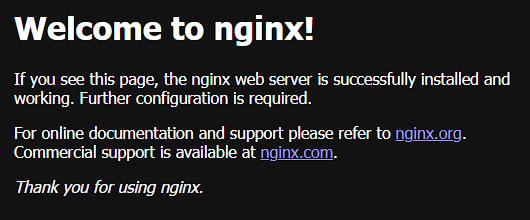
 cp docker/index.html /var/lib/docker/volumes/testvol/_data/index.html
cp: overwrite '/var/lib/docker/volumes/testvol/_data/index.html'? y
//해당 화면은 넷플릭스 페이지로 만들어낸 컨테이너이다
해당 파일을 붙여넣었더니 volumn도 바뀐것을 알 수 있다.,
반대로
root@922a9494e303:/usr/share/nginx/html# rm -rf file1
root@922a9494e303:/usr/share/nginx/html# echo 2222 > file2
file1 지우고 2로 바꾼 후
root@922a9494e303:/usr/share/nginx/html# echo "<h1>Web Server</h1>" >index.html
웹페이지 내용도 바꿔줬다면
ls -l /var/lib/docker/volumes/testvol/_data/

-rw-r--r--. 1 root root  5 2025-10-12 13:36 file2
-rw-r--r--. 1 root root 20 2025-10-12 13:36 index.html
위처럼 호스트에서도 바뀐다.
crm으로 컨테이너를 삭제하더라도 디렉토리 자체의 파일은 남는다.
만약 다시 컨테이너를 run할 경우 다시 동기화 된다.
nginx의 파일이 있을 때 볼륨에 파일이 없을때 nginx의 파일이 볼륨에 동기화되지만
볼륨에 파일이 있을경우 nginx 에 파일이 없을 경우 동기화되지 않는다.
2. bind mount 방식
정해진 디렉토리가 아니라 아무 디렉토리나 사용헤도 됨.
볼륨은 디렉토리가 정해져 있다.
호스트에 /www디렉토리를 만들면
nginx 컨테이너( /usr/.share/nginx/html/)과 연결된다.
그런데 컨테이너 자체에 있던 기본 파일 50x.html, index.html등은 삭제된다.
- 이건 /www디렉토리가 비어있어도 마찬가지
- 디렉토리 아무데나 써도 된다.
docker container run -d --name myweb -v /www:/usr/share/nginx/html -p 8080:80 nginx
이처럼 /www방식으로 만들경우 bind mount방식으로 만들어진다.
그러면
[root@docker1 ~]# docker container exec myweb ls -l /usr/share/nginx/html
total 0
이처럼 비어지게 된다.
당연하게 여러개 만들어서 해당 디렉토리로 연결해주면 하나의 디렉토리로 연결된다.
'프로젝트' 카테고리의 다른 글
| 3. ASR 모델의 도메인 특화 용어 인식 오류율 감소를 위한 논문 탐구 (0) | 2026.04.04 |
|---|---|
| 2. 인공지능 음성 인터페이스의 지연시간/인지심리학적 분석 (0) | 2026.04.02 |
| 1. Whisper Fine-Tuning에 대해 (0) | 2026.04.01 |
| 1. 머신러닝의 기초 (1) | 2025.09.30 |
| 0. 캐글 프로젝트 준비 (1) | 2025.09.23 |